Tangor AI — Help & Guide 🍊
Hi there, and welcome! Tangor AI is your private little sugar jar for AI chats. You talk to your favorite AI sites (ChatGPT, Claude, Qwen, DeepSeek, Gemini…) right inside the app, and every sweet conversation is quietly saved on your own computer so you can search it and find it again later.
No cloud. No snooping. Just your AI memories, locked and local. 🔒
This guide walks you through everything — take it one candy at a time.
What is Tangor AI?
Think of Tangor AI as a cozy browser made just for AI websites, with a memory:
- Open many AI sites in tabs, side by side — no juggling browser windows.
- Your chats are recorded automatically as you talk, into a private library on your device.
- Search everything later — every question and answer you've ever had, instantly findable.
- Everything stays on your computer. Your conversations are not uploaded anywhere.
 The main window: tabs along the top, your AI sites on the left sidebar, and a search box in the title bar.
💡 The candy metaphor: We call your saved chats "candies" and the search page the "Tangor jar." Don't worry — it's just a cute name for "your searchable chat history." 🍬
Get started in 3 steps
- Open an AI site. Click any site in the left sidebar (or open a new tab and pick one).
- Chat like you always do. Ask your questions, get your answers — nothing changes about how you use the AI.
- Find it again anytime. Type in the search box at the top to dig any past conversation back out of the jar.
That's the whole loop. Everything below is just the details. 😊
Browsing AI sites (tabs, address bar, sidebar)
Tangor AI works like a tabbed browser, but tuned for AI.
The sidebar (left). Your "Connected Sweet Sources" live here — all your AI sites with their logos. Click one to open it in a tab. You can drag to reorder them, and your order is remembered.
Tabs (top). Each site opens in its own tab.
- Click the
+button to open a new blank tab. - Click a tab to switch to it; click the
×to close it. - The Tangor jar (search) tab is always pinned and can't be closed — it's home base.
New tab page. A fresh tab shows an address bar and a grid of all your sites:
- Type a web address and press Enter to go there.
- Type keywords (not a URL) and it'll run a web search instead.
- Click any site tile to jump straight in.
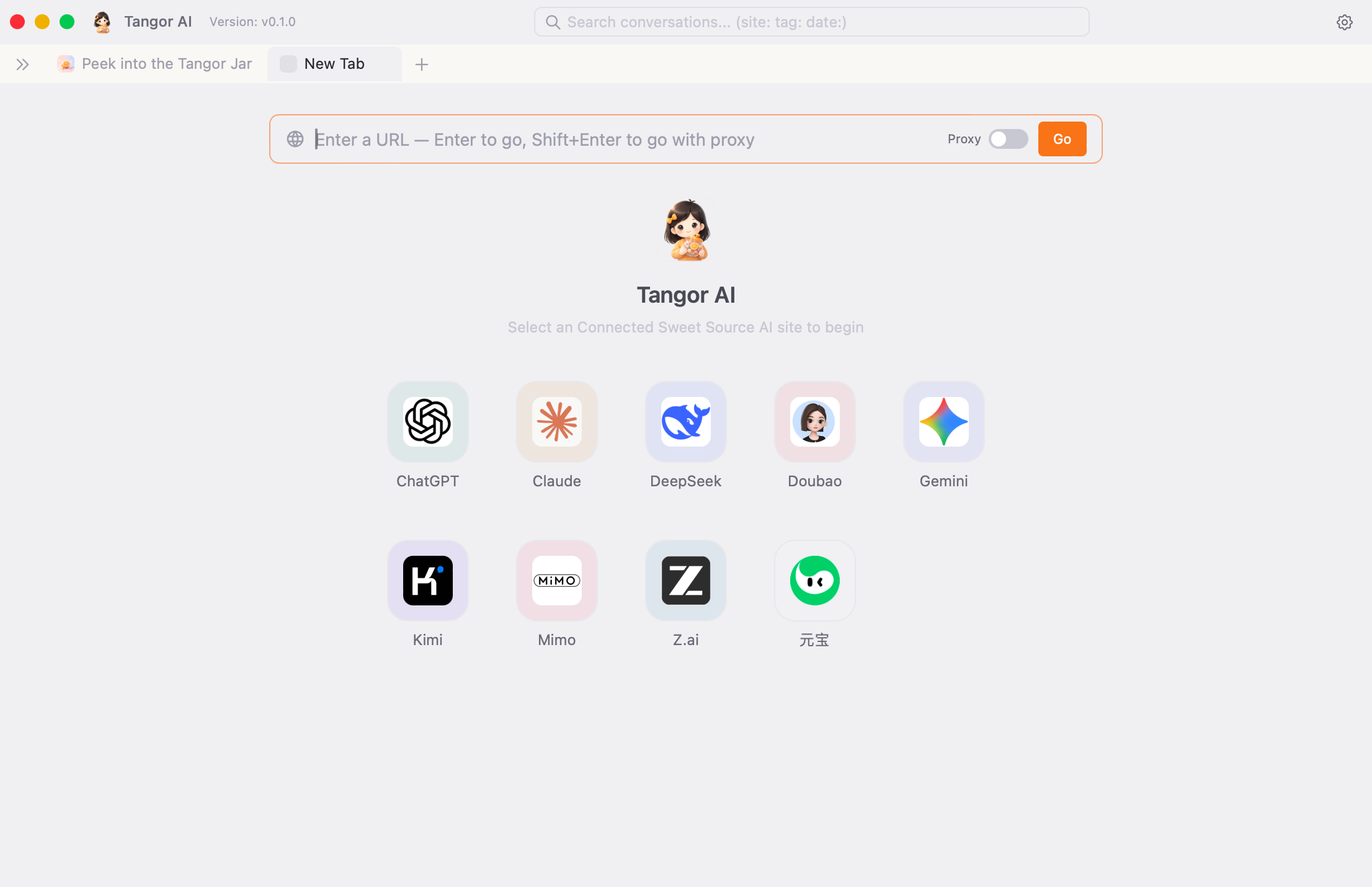 A new tab: type an address up top, or click a sweet-source tile to dive in.
Navigation toolbar. Need Back / Forward / Reload or to see the address? Click the active tab again to toggle the toolbar. It tucks itself away after a moment to keep things tidy.
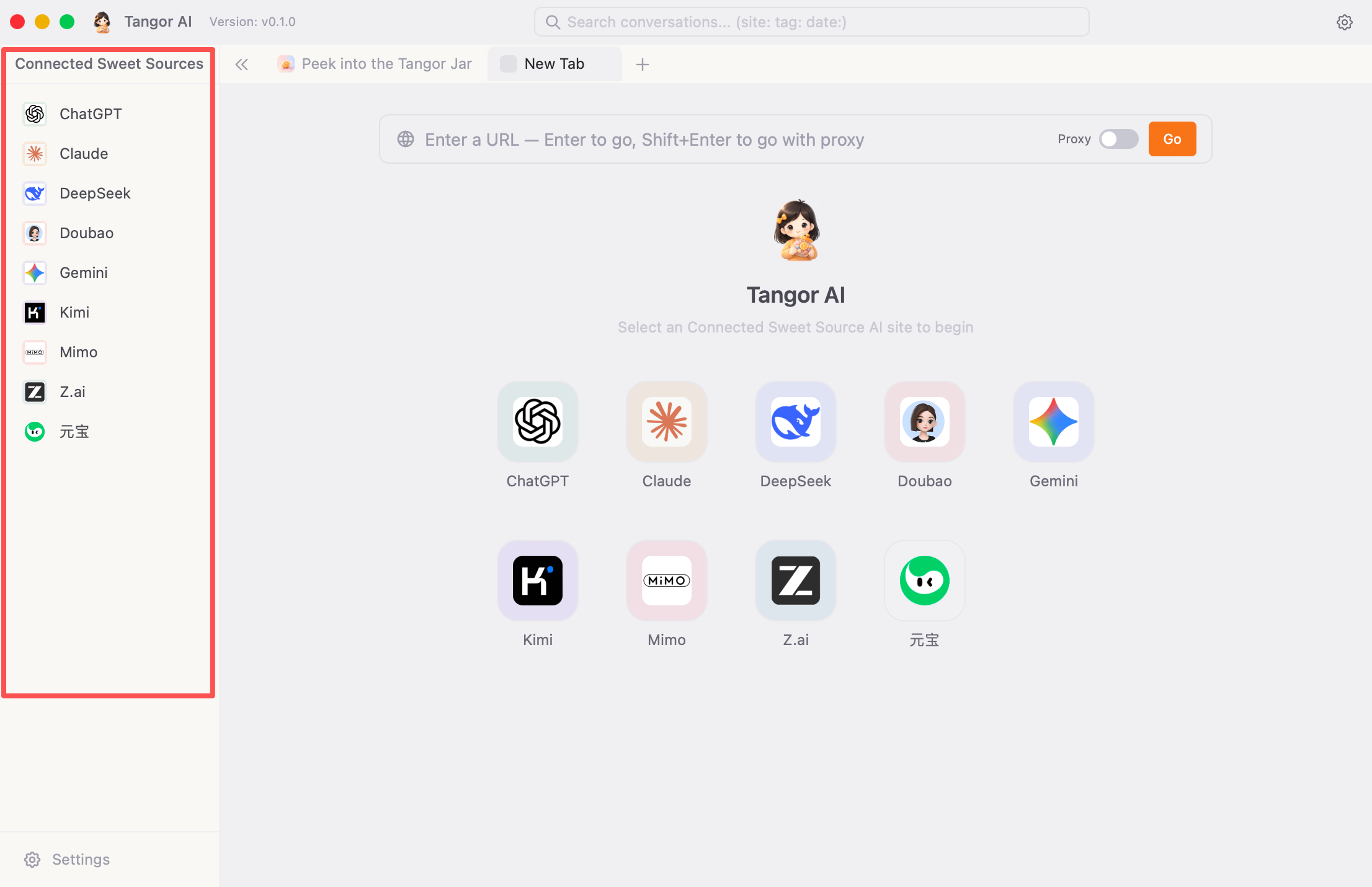 Sidebar of AI sites on the left; open tabs across the top.
Your chats are saved automatically
Here's the magic: you don't have to press "save" on anything. As you chat on a supported AI site, Tangor AI quietly records each question-and-answer pair into your private library. No pop-ups, no interruptions.
- It only captures on the supported AI sites built into the app.
- Captured chats include the question, the answer, the time, and which AI you used.
- Everything is stored locally on your device — see Privacy & your data.
⚠️ Heads up: Capture only works while you're chatting inside Tangor AI on a supported site. If you chat somewhere else (a different browser, or a site we don't support yet), use Manual Q&A capture to save it by hand.
💡 Don't see a chat you expected? Give it a moment after the answer finishes, then search again. Brand-new replies take a heartbeat to land in the jar.
The Tangor jar: search & revisit
This is the heart of Tangor AI — your searchable memory of every AI chat. Open it from the search box in the title bar, or jump to the Tangor jar tab anytime.
The search box
Just start typing what you remember. As you type, a dropdown suggests similar questions you've asked before — pick one to jump right to it, or press Enter to do a full search.
You can also narrow your search with simple filters typed right in the box:
| Type this | To find… |
|---|---|
site: |
chats from a specific AI site |
tag: |
chats you've tagged |
date: |
chats from a certain date |
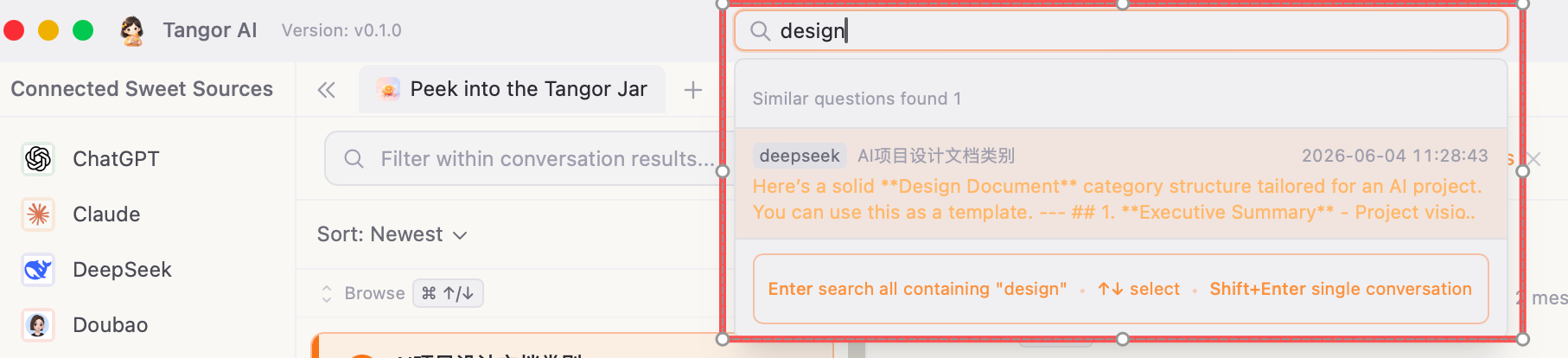 Start typing and Tangor AI suggests questions you've asked before.
💡 Tip: Multi-keyword search can be tuned in Settings → Chat Records. Turn it on to require all words to match; turn it off to search your text as one exact phrase.
Reading your results
The jar page has three panels:
- Left — the list of matching chats. Each shows a title, when it happened, and how many hits it has. Click one to open it. You can sort (by relevance, time, number of hits, site…) and load more results as you scroll.
- Middle — the full conversation. Read the whole back-and-forth. Switch between Q&A view (tidy question/answer pairs) and Raw messages (everything in order). Your search words are highlighted in yellow, and you can jump between hits with the next/previous buttons. Copy any answer, or the whole chat, with one click.
- Right — the details panel. An outline to jump to any question, plus info about the chat (which AI, when, source link), its tags, and related conversations. Collapse it if you want more room.
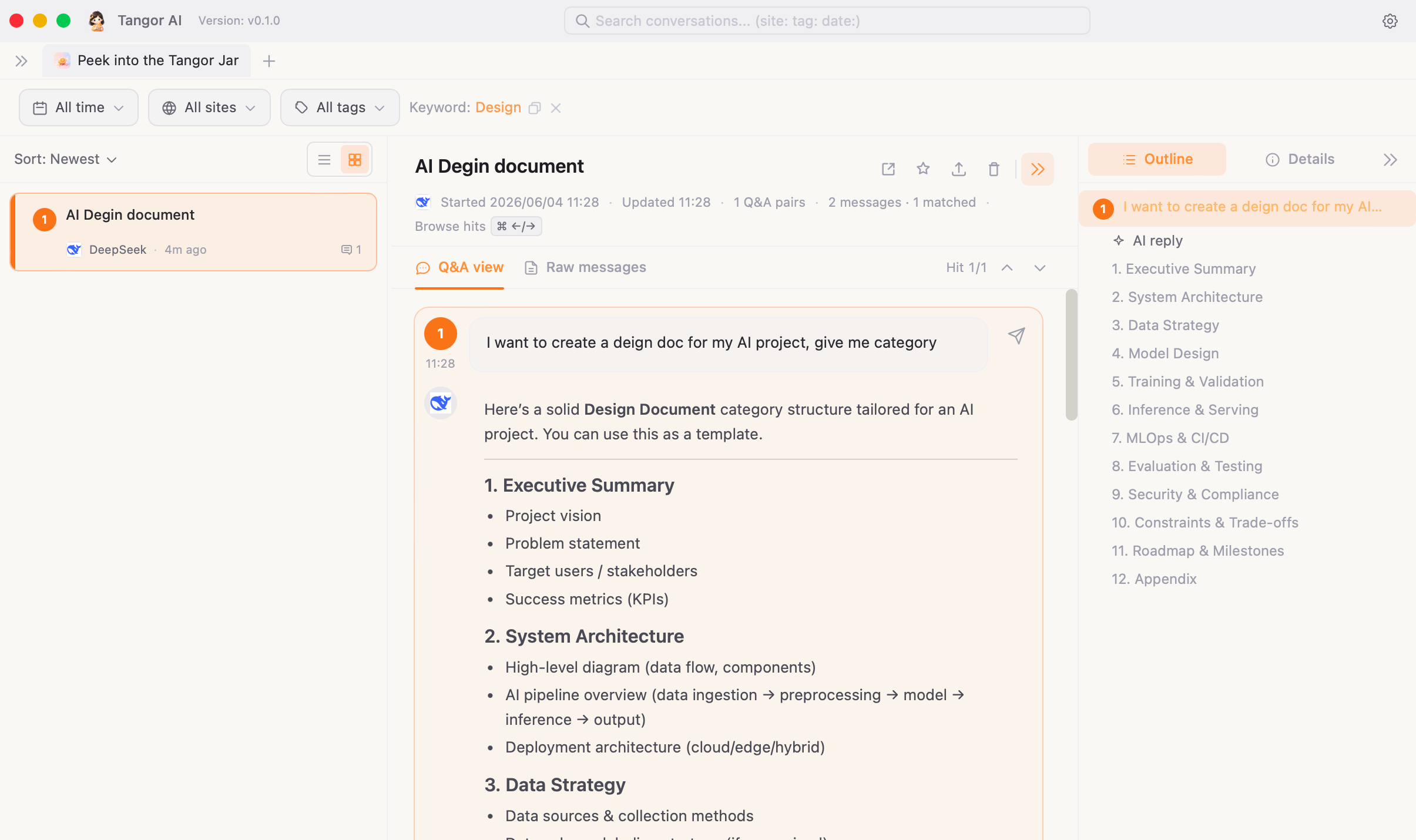 Three panels: matching chats on the left, the full conversation in the middle, details on the right.
Filters, favorites, tags & categories
Above your results you'll find quick filters for date range, site, tags, and categories — handy when you want to browse rather than search. You can favorite ⭐ a chat to find it fast later, add your own tags to organize, and delete chats you no longer want.
Some Q&A pairs also get category chips, such as "Work & Study" or "Tech & Digital". If a category is wrong, click the chip to correct it manually; your manual correction takes priority over automatic categorization.
⚠️ Deleting is forever. Removing a conversation (or a single Q&A) erases it from your local library for good — there's no cloud backup to restore it from.
Manual Q&A capture
Chatting with an AI somewhere Tangor AI can't see — a different browser, a coding tool, anywhere? You can still tuck that Q&A into your jar by hand. 🍬
How it works:
- Press the Manual Q&A shortcut (default:
Option/Alt + Shift + R). - Tangor AI starts watching your clipboard for about a minute.
- Copy the question (just select it and copy).
- Copy the answer (select and copy).
- The app pops to the front with a dialog — question and answer already filled in.
- Tweak the text if you like, give the conversation a name, then Save (or press
Shift + Enter).
You can also append to an existing saved chat — just pick it from the "use existing conversation" dropdown in the dialog.
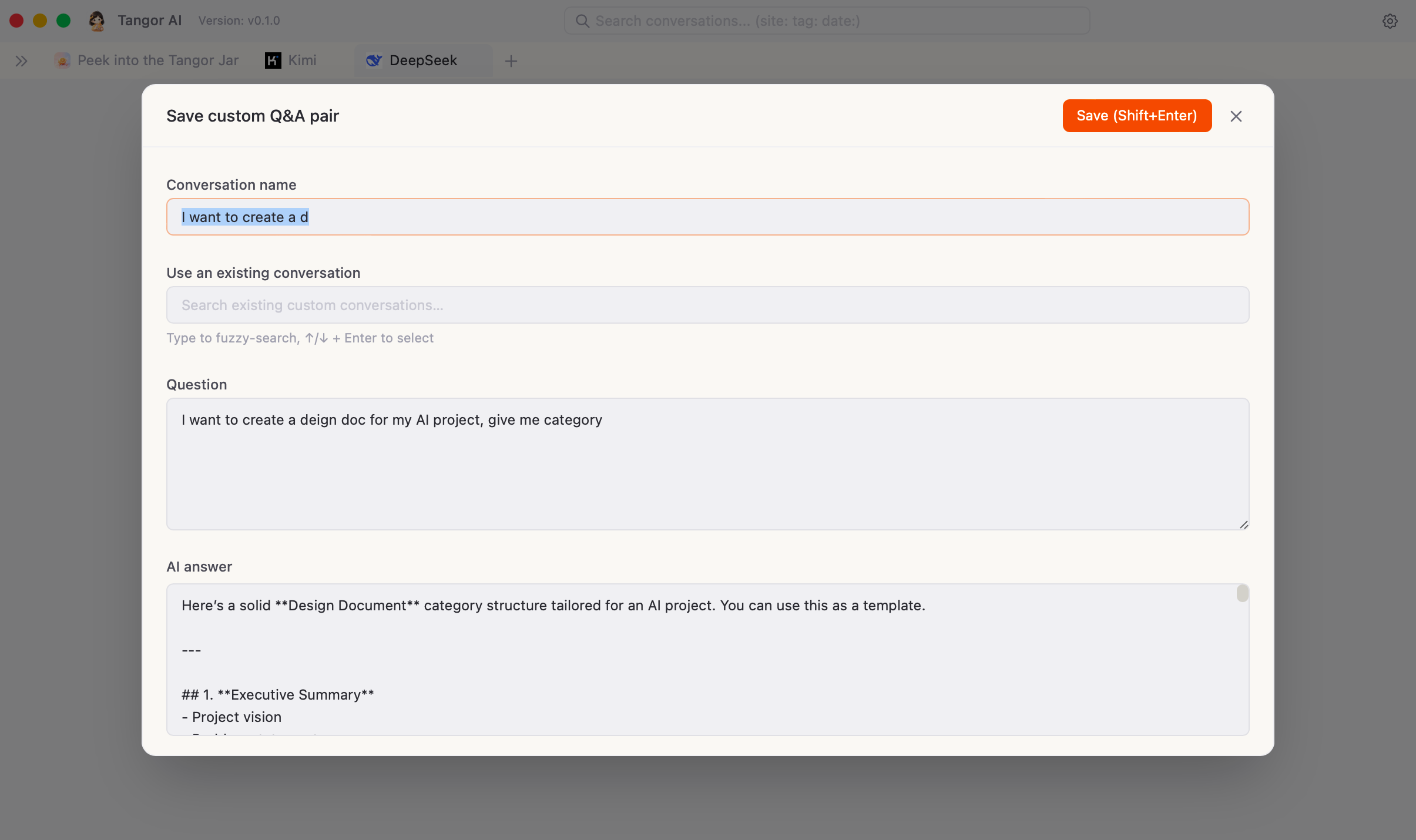 Copy the question, copy the answer — Tangor AI fills the rest in for you.
💡 Tip: The default chat name comes from the first part of your question. You can change how many characters it uses in Settings → Chat Records.
⚠️ The clipboard window is short (about a minute). If it times out, just press the shortcut again and re-copy.
Exporting your conversations
Want to take a chat with you? You can export it to a file.
- Open a conversation in the Tangor jar and click the Export button (the download icon in the conversation toolbar).
- Choose what to export — the whole conversation, or just the one message you've selected.
- Choose a format — Plain text, Markdown (great for notes and sharing), Office Word (.docx), or PDF.
- Exporting to PDF opens the system print dialog: on macOS, pick "Save as PDF" from the PDF dropdown (bottom-left); on Windows, set the destination printer to "Save as PDF" (the ⓘ icon next to the format explains this too).
- Pick where to save it, and you're done — it's a normal file you can keep or share.
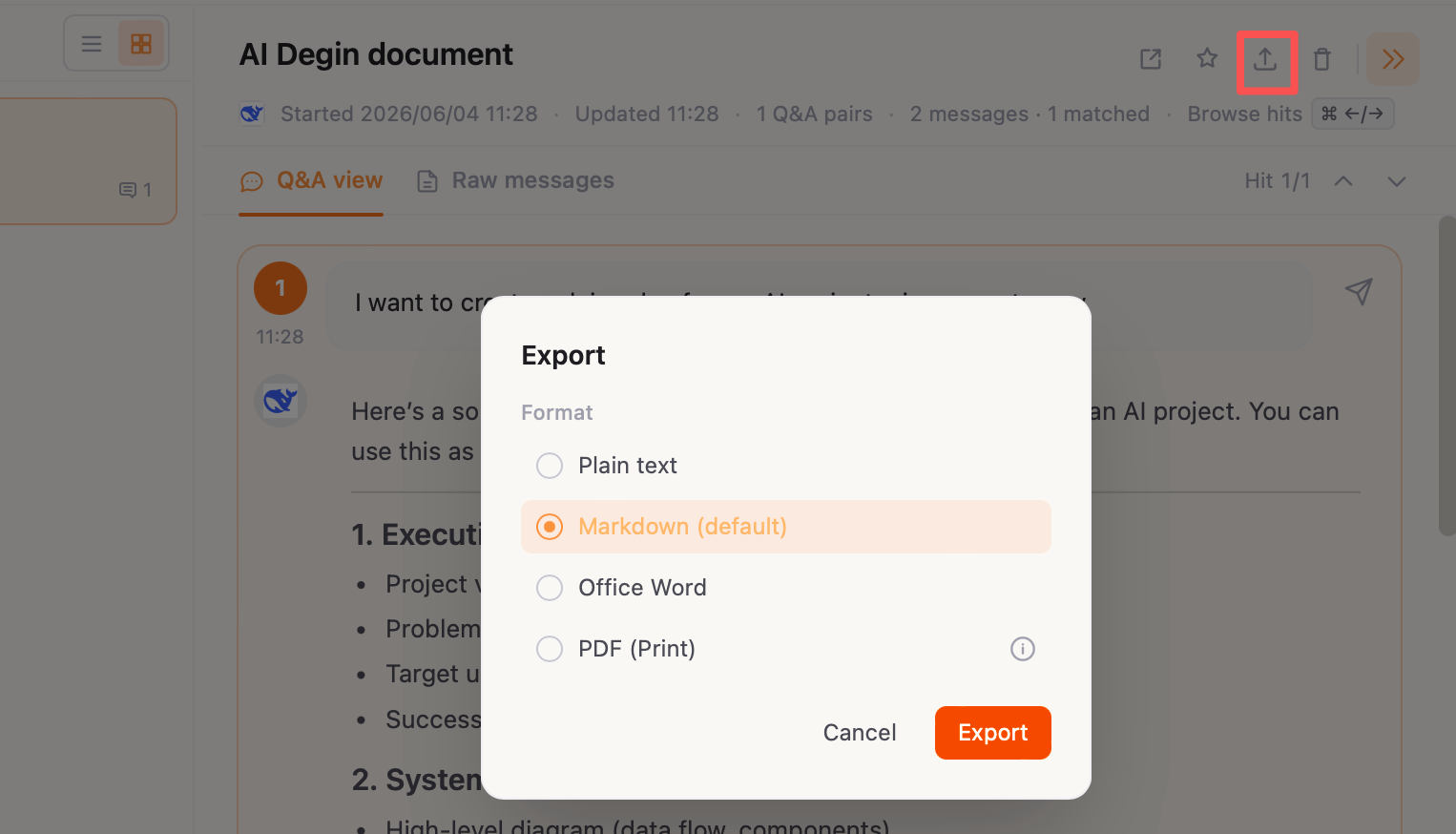 Choose what to export and which format, then save it wherever you like.
Local backup and restore
Tangor AI keeps your data on your computer by default. If you are moving to a new machine, reinstalling the system, or just want a regular safety copy, use Local Backup / Restore.
In Settings → Sync/Backup, you can do three things:
- Back Up Now: export your chats, messages, and user-edited metadata such as manual categories into a
.tangorbakfile. - Restore from File: choose a previous
.tangorbakfile and merge its data back into the current jar. - Clear chat records: permanently delete all local conversations and messages. This lives in the danger area; back up first.
Backup files are protected by a password you choose. That password is used locally to encrypt and decrypt the backup file. If you forget it, the backup cannot be recovered, so keep it in your password manager.
Restore is an incremental merge: existing items are not overwritten, and conflicts keep the version already in your current database. After restore, Tangor AI rebuilds the search index.
⚠️ Your backup file is your local safety copy. It is not cloud sync, and it is not uploaded automatically. Keep the
.tangorbakfile somewhere you trust.
Keyboard shortcuts
Tangor AI is full of shortcuts so you can fly. Every one of them is viewable and editable in Settings → Shortcuts — so if a key combo below differs on your machine, that's the place to check (and change it).
App shortcuts (default — Mac / Windows)
| Action | Mac | Windows |
|---|---|---|
| New tab | ⌘ N |
Ctrl N |
| Close tab | ⌘ W |
Ctrl W |
| Previous tab | Ctrl 1 |
Alt 1 |
| Next tab | Ctrl 2 |
Alt 2 |
| Go to the Tangor jar | Ctrl 4 |
Alt 4 |
| Focus the search box | Ctrl Q |
Ctrl Q |
| Wake app + jump to search | ⌥ ⇧ T |
Alt ⇧ T |
| Quick access | ⌥ ⇧ Q |
Alt ⇧ Q |
| Quick access - Ask mode | ⌥ ⇧ W |
Alt ⇧ W |
| Manual Q&A capture | ⌥ ⇧ R |
Alt ⇧ R |
| Open Prompt Menu | Ctrl P |
Ctrl P |
Quick-open a site (default — Mac / Windows)
| Site | Mac | Windows |
|---|---|---|
| ChatGPT | ⌥ T |
Alt T |
| Claude | ⌥ C |
Alt C |
| DeepSeek | ⌥ D |
Alt D |
| Doubao | ⌥ B |
Alt B |
| Gemini | ⌥ G |
Alt G |
| Kimi | ⌥ K |
Alt K |
| Qwen | ⌥ Q |
Alt Q |
| Zhipu | ⌥ Z |
Alt Z |
| Mimo | ⌥ M |
Alt M |
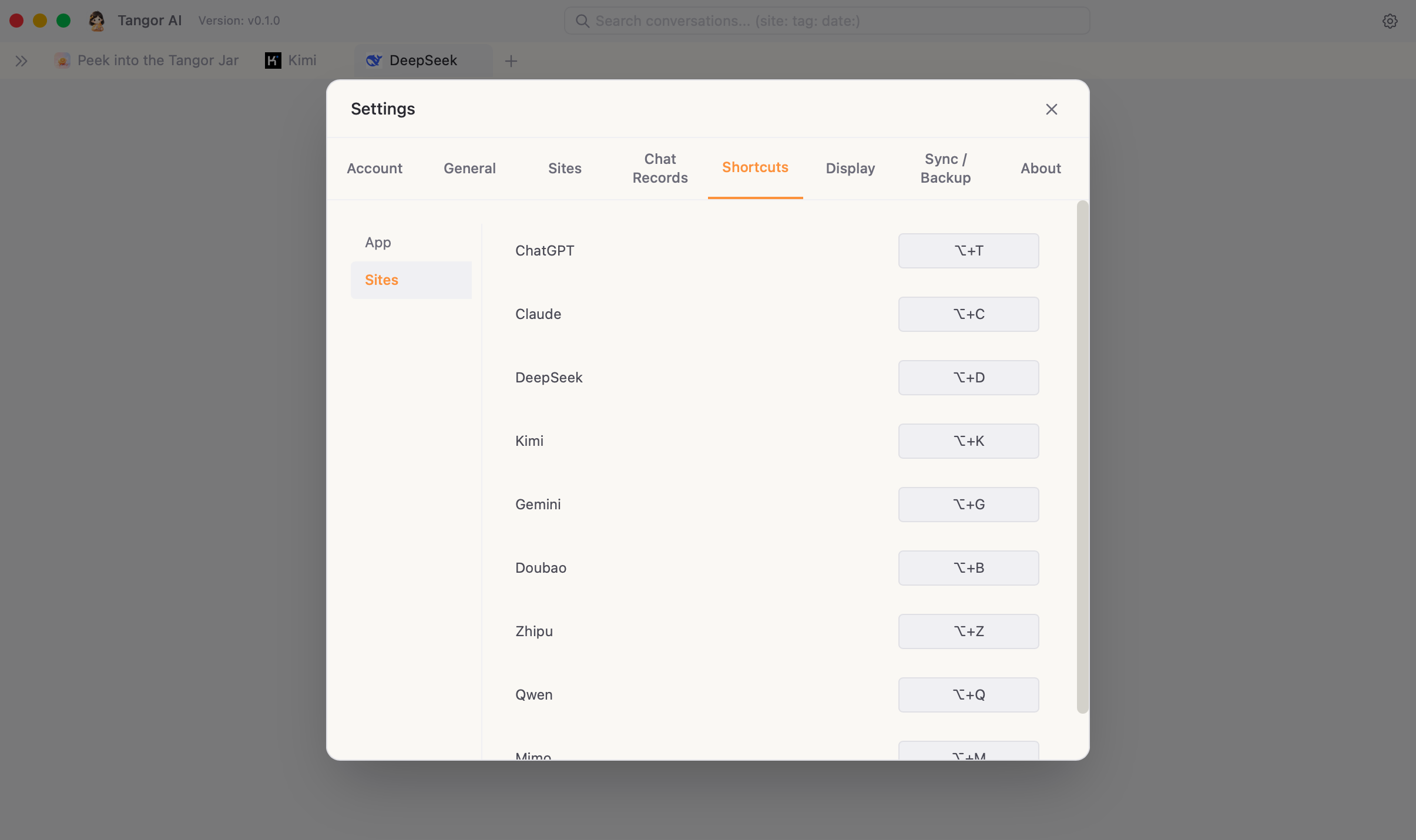 See and rebind every shortcut in Settings → Shortcuts.
💡 The "wake app" shortcut is global — it brings Tangor AI to the front and focuses search even when the app is hidden or in the background. Great for a quick "wait, what did the AI tell me last week?"
💡 The Prompt Menu only works inside website tabs. Press
Ctrl Pon a ChatGPT, Claude, or similar site tab to open the prompt window; use↑ / ↓to choose,Enterto inject,Shift + Enterto edit, andCtrl + Nto add a new prompt.
Quick access: find and ask without switching windows
Quick access is a lightweight floating window for the moments when you are working somewhere else and want to find an old chat, or send a new question to one of your usual AI sites.
Press Quick access (default: Option/Alt + Shift + Q) to open Search mode.
Press Quick access - Ask mode (default: Option/Alt + Shift + W) to open Ask mode directly.
If you do not want the separate floating window, turn it off in Settings → General → Quick access. When it is off, the Quick access global shortcuts no longer open the small window.
Search mode: browse the jar like Spotlight
In Search mode, type whatever you remember. Tangor AI shows recent conversations first; once you type two or more characters, it starts matching past questions and related conversations.
- Press
↑ / ↓to choose a result. - Press
Enterto search all matching records. - Press
Shift + Enterto focus the selected conversation. - Press
Command/Ctrl + Enterto continue that conversation on the original AI site. - Press
Shift + Tabto hand the current text to the main search box, where site, tag, and date filters are available.
If you type a filter prefix such as site:, tag:, or date:, Quick access hands it to the main search box automatically, because those filter pickers live there.
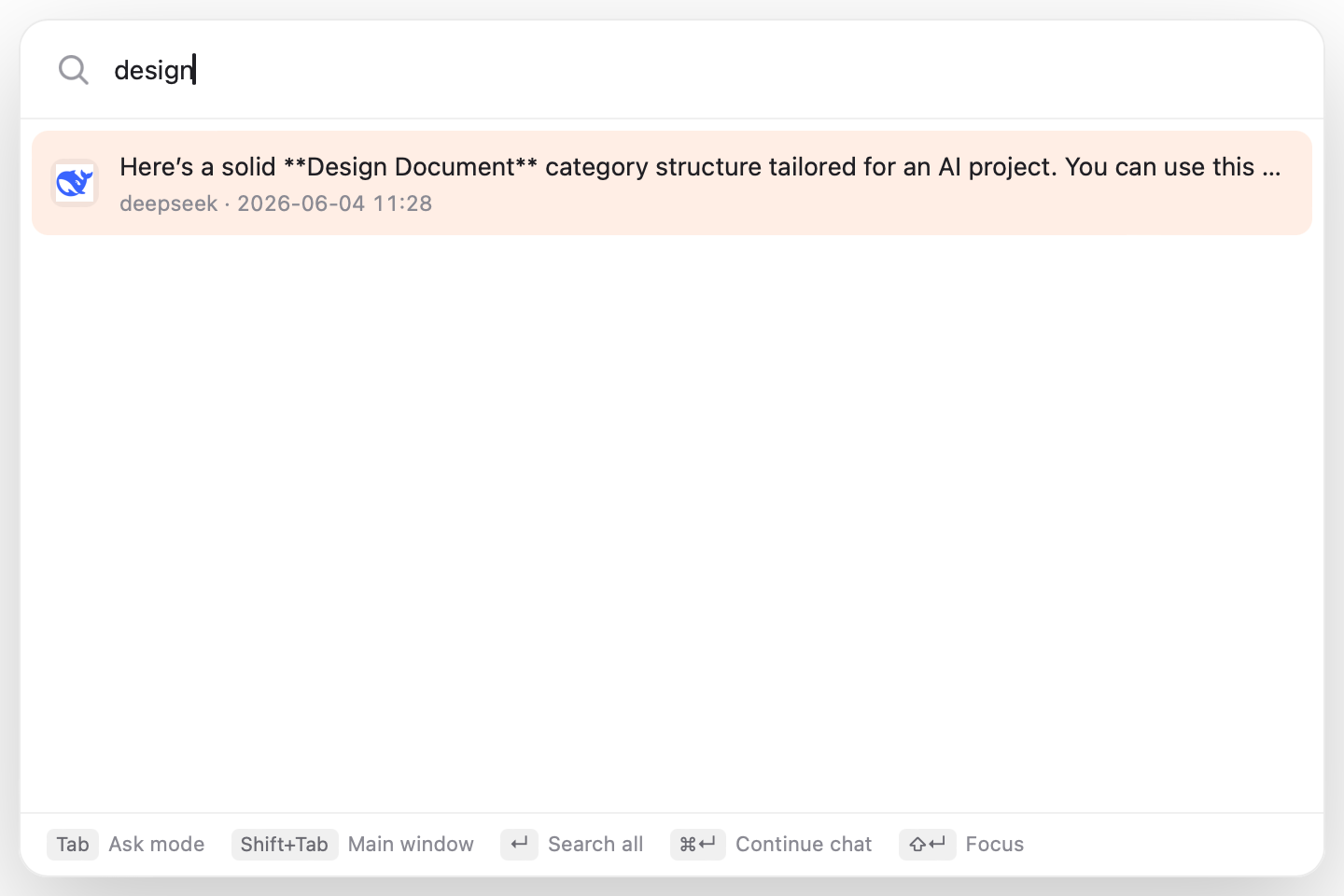 Search mode: find recent and related AI conversations without opening the main window first.
Ask mode: write first, choose the site next
In Ask mode, type your question first, then choose the AI site you want to ask.
- Press
Tabto switch between Search mode and Ask mode. - Press
↑ / ↓to choose a site. - Press
Enterto open the selected site and fill in your question. - Press
Shift + Enterto continue in the latest conversation from that site when possible. - If auto-fill fails, Tangor AI copies the question to your clipboard so you can paste it manually.
Your ask draft is kept temporarily. If you close Quick access and come back, the unfinished question is still there.
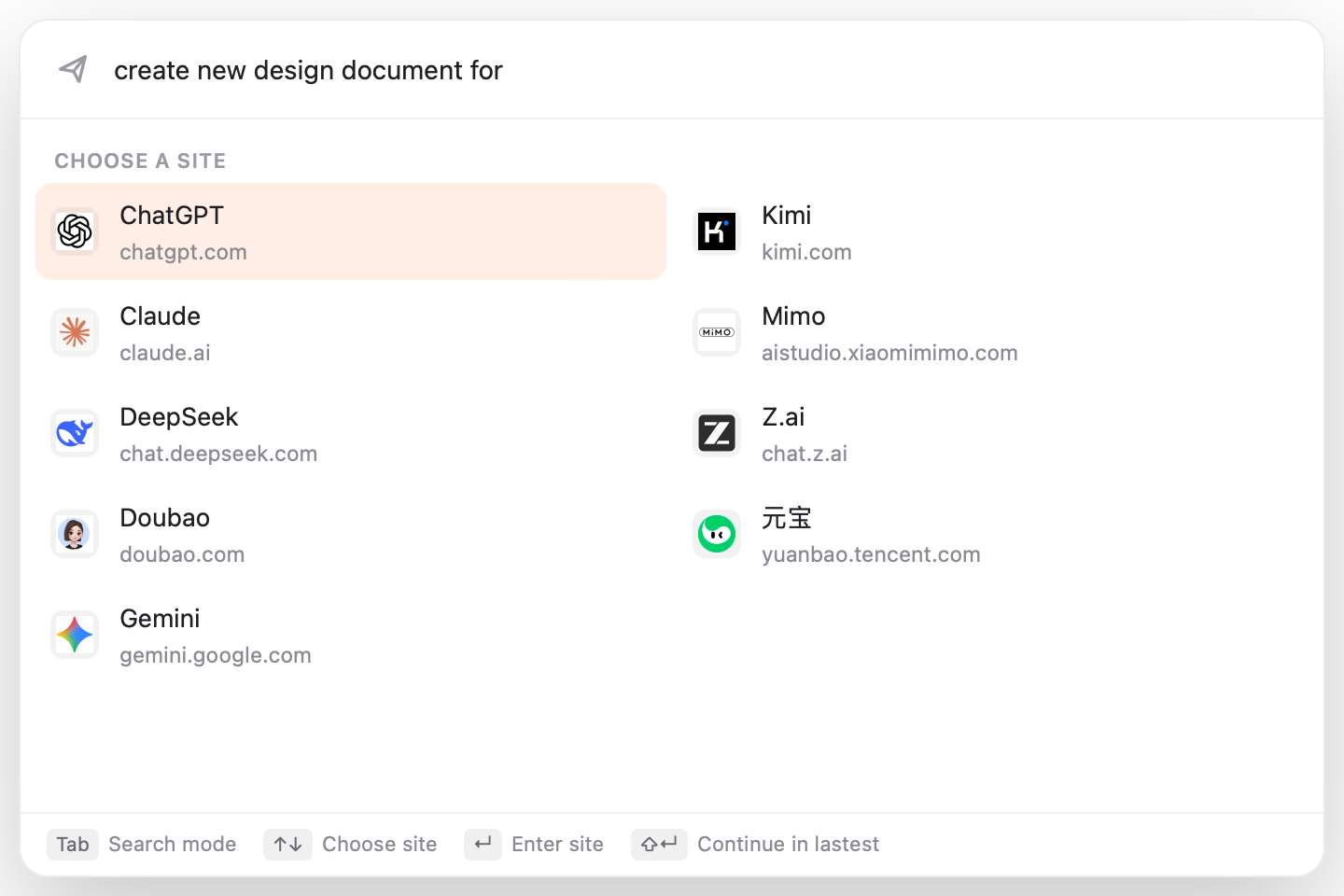 Ask mode: write the question, then choose ChatGPT, Claude, DeepSeek, or another site.
Lock your jar (app lock)
Want a little privacy when you step away? Set a lock-screen PIN.
- Go to Settings → Account → Lock Screen Password.
- Set a short numeric PIN (1–4 digits).
- Lock anytime from the top-right menu → Lock, or turn on lock when the window closes in settings.
To unlock, type your PIN on the lock screen and you're back in.
 The lock screen — enter your PIN to get back into the jar.
⚠️ Remember your PIN! Since everything is local and private, there's no "forgot password" email. Pick something you won't forget.
Network proxy (when a site won't load)
Some AI sites may not be reachable from every network. If a site won't load, a proxy can help route around it.
- Go to Settings → Sites and turn on the proxy switch.
- Enter your proxy details: type (HTTP or SOCKS5), host, port, and optional username/password.
- Click Test Connection to make sure it works (it'll show the latency).
- Turn the proxy on per-site for just the sites that need it — others keep a direct connection.
On the new tab page you can also hold Shift + Enter to open an address through the proxy for that tab.
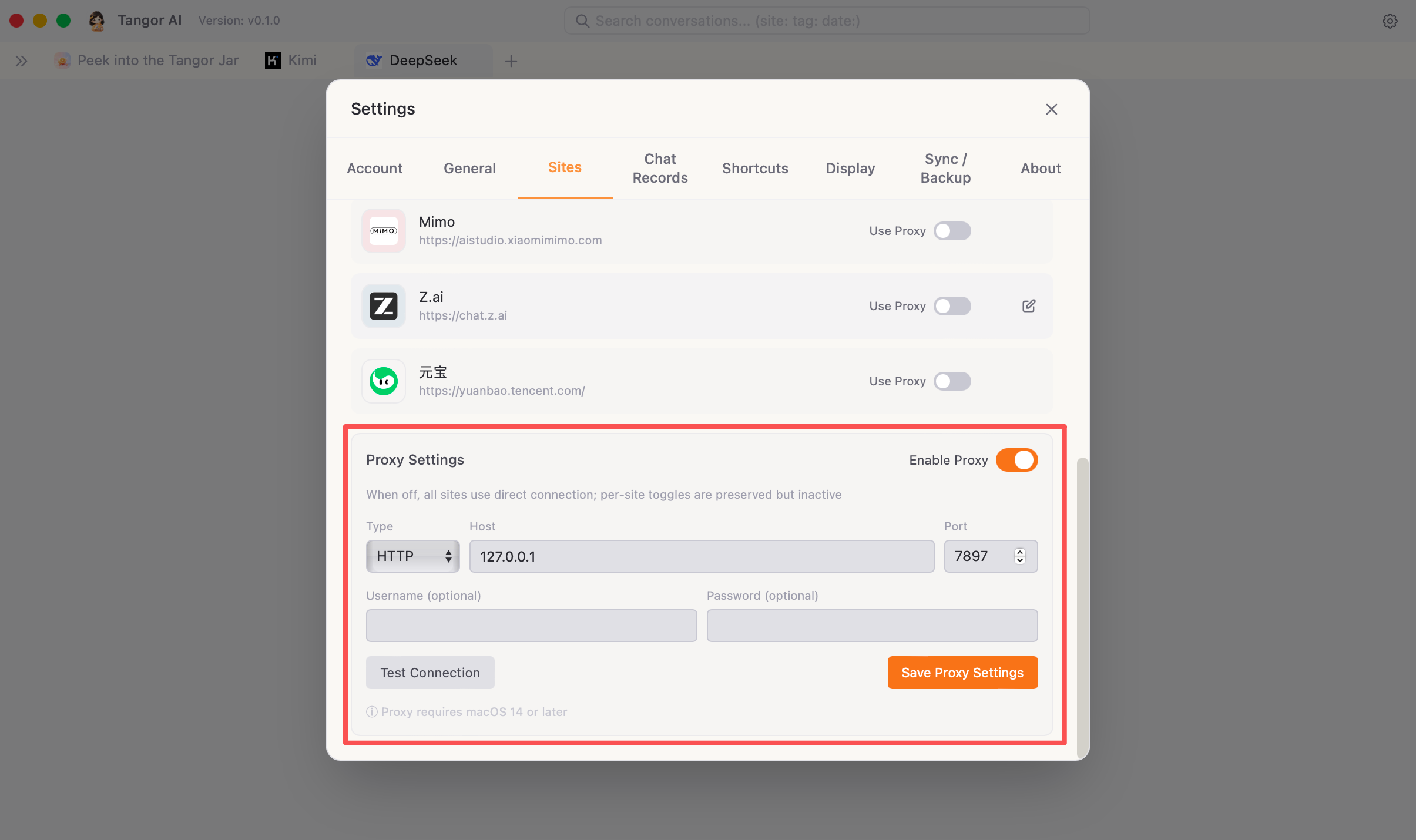 Set your proxy, test it, then enable it only for the sites that need it.
⚠️ macOS note: Proxy support needs macOS 14 or newer.
Make it yours (settings)
Open Settings from the top-right menu (the gear icon). Here's what you can adjust:
- Account — your avatar, email, phone, login password, and lock-screen PIN.
- General — the Quick access switch, language (English / 简体中文 / 繁體中文), auto-update, browsing history controls, recent-history count, and, on Mac, the menu-bar icon.
- Display — appearance: Light (creamy white), Dark (deep blue-black), or follow your system. Changes apply instantly.
- Shortcuts — view and rebind every keyboard shortcut.
- Sites — edit a site's name, logo, or color; reorder sites; set up proxy.
- Sync/Backup — create encrypted local backups, restore from a backup file, clear local chat records, and, when member mode is enabled, access cloud sync.
- Chat Records — fine-tune search: how many suggestions appear as you type, whether suggestions group by conversation or Q&A pair, multi-keyword matching, whether you can browse all records, outline title length, default title length for manual Q&A, and auto-capture success notification/sound.
- About — app version and links to the User Agreement & Privacy Policy.
When auto-update is enabled, Tangor AI checks for new versions periodically. If an update is available, a small reminder appears in the title bar; click it to download or install.
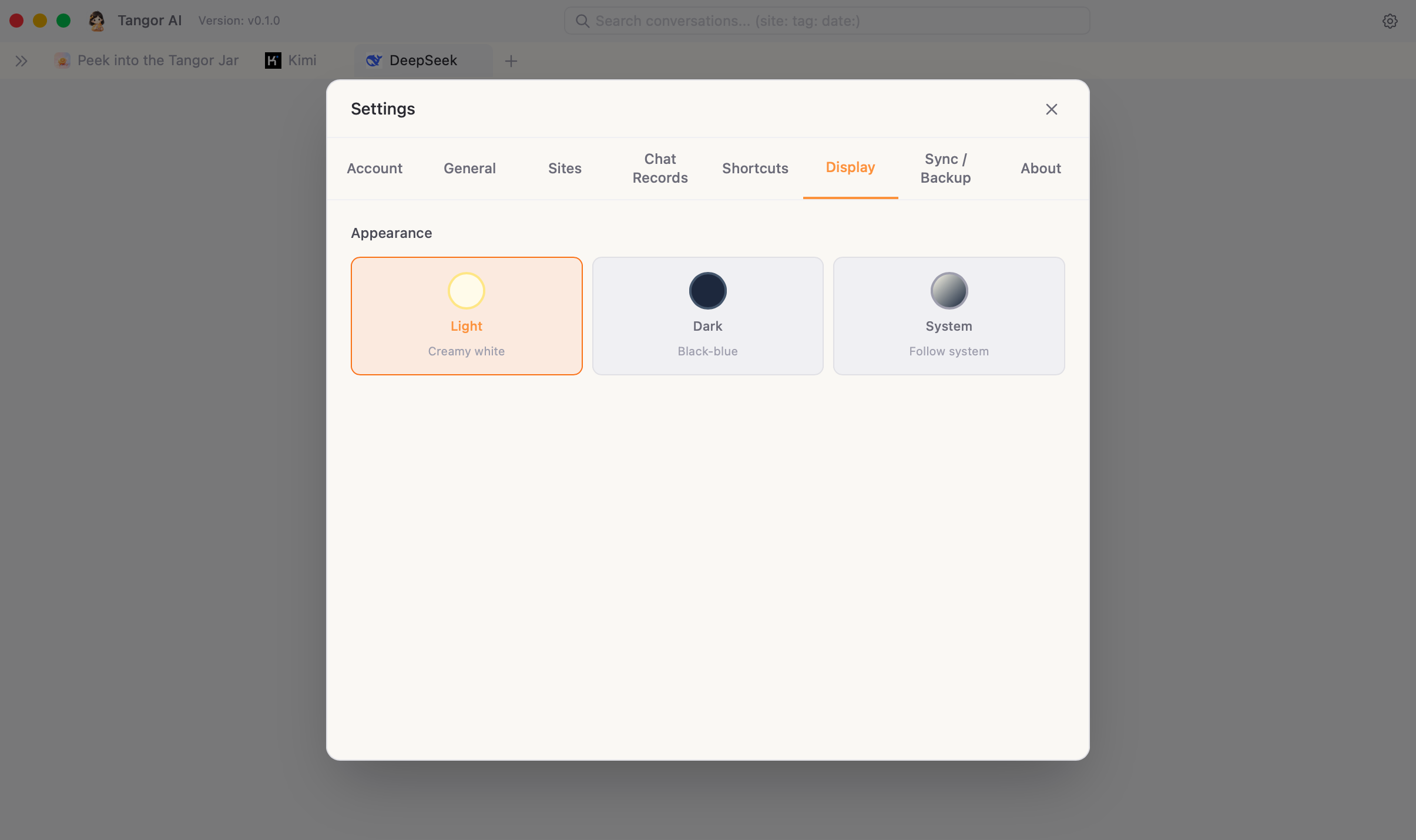 Pick your theme and language in Settings — changes happen right away.
Privacy & your data
This is the part we care about most. 💛
- Everything is local. Your conversations, settings, and avatar live in a database on your own computer. They are not uploaded by default.
- You're in control. Delete any chat or Q&A whenever you want — it's gone for good.
- Lock it down. Use the lock-screen PIN for extra privacy.
- Want the legal details? See the User Agreement and Privacy Policy (linked in Settings → About).
- Want a safety copy? Use Settings → Sync/Backup → Back Up Now regularly to export an encrypted backup file.
⚠️ Because your data is local, you are its backup. If you delete a chat, reinstall the app, or wipe your computer, those memories go with it. Create a local backup for anything you'd hate to lose.
FAQ
Q: I had a chat but I can't find it in search. Why?
A few things to check: make sure it was on a supported AI site inside Tangor AI (chats elsewhere need manual capture); give a brand-new answer a moment to be saved; and double-check your search filters (site: / tag: / date:) aren't narrowing things too far.
Q: Where exactly is my data stored? In a local database on your computer. Nothing is sent to a cloud server by default.
Q: A site shows a login error or won't load. Logging into the AI site itself is normal and expected — sign in as you would in any browser. If a site won't load at all, try the proxy.
Q: I'm getting a new computer. How do I bring my chats?
On the old computer, go to Settings → Sync/Backup → Back Up Now, save the .tangorbak file, and remember the password. On the new computer, use Restore from File. Restore merges incrementally and does not overwrite records already on the new machine.
Q: Can I add my own AI site? You can manage and tweak the built-in sites in Settings → Sites. The app comes with the popular ones ready to go.
Still need help?
You've got this! 🍊 If something still feels stuck:
- Re-open this guide anytime from the top-right menu → Help.
- Check Settings → About for your app version when reporting an issue.
Thanks for keeping your AI memories in the jar with us. Happy chatting! 🍬